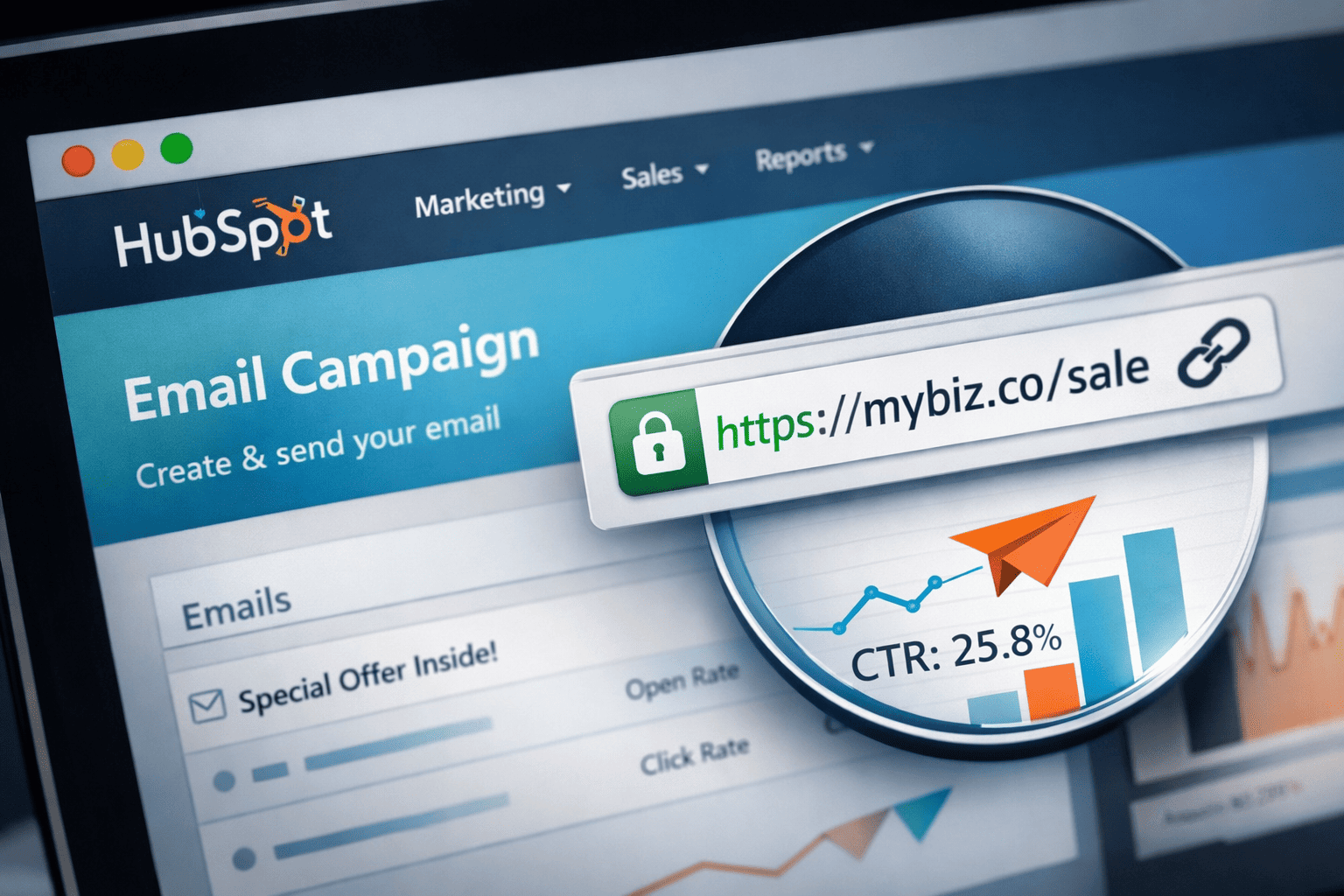

HubSpot is genuinely excellent at a lot of things. Contact management, automation sequences, pipeline visibility, email analytics—it's a powerful platform and most teams using it are getting real value from it. But there's a quiet limitation that doesn't get talked about nearly enough: the URLs it puts inside your emails are ugly, and they can work against you.
If you've ever looked at the plain-text version of a HubSpot email and winced at the URL it generated for a CTA button—the long redirect chain with HubSpot's own tracking parameters layered on top of your already-long destination URL—you know what I mean. It works. Tracking works. But the experience for recipients who see it in certain email clients, or in a forwarded email, or in a preview pane, is not what you'd choose if you were designing it intentionally.
Short links give you that intentional design back.
What HubSpot Does to Your Links (And Why It Matters)
When you add a link to a HubSpot email, HubSpot wraps it in its own tracking redirect. That's how click data shows up in your reporting—every click goes through HubSpot's server, which logs it and then forwards to your destination. Standard email marketing behavior.
The problem isn't the tracking. The problem is that the resulting URL is a combination of HubSpot's tracking redirect wrapped around your destination URL, which might already have its own UTM parameters and path structure. By the time a recipient sees the actual URL—in a plain-text version of the email, or hovering over a link, or reading a forwarded version—it's a small wall of text.
For transactional emails and automated sequences that go to existing customers or warm leads, this often doesn't matter. People trust the relationship and click without scrutinizing the URL.
For prospecting emails, cold outreach sequences, or any situation where the recipient is making a trust decision, the URL they see when they hover over your carefully worded CTA button is part of that decision. A clean, branded short link that says something meaningful—rather than a redirect URL with tracking tokens—passes that inspection. The raw HubSpot-wrapped URL often doesn't.
The Practical Workflow: Short Links in HubSpot Emails
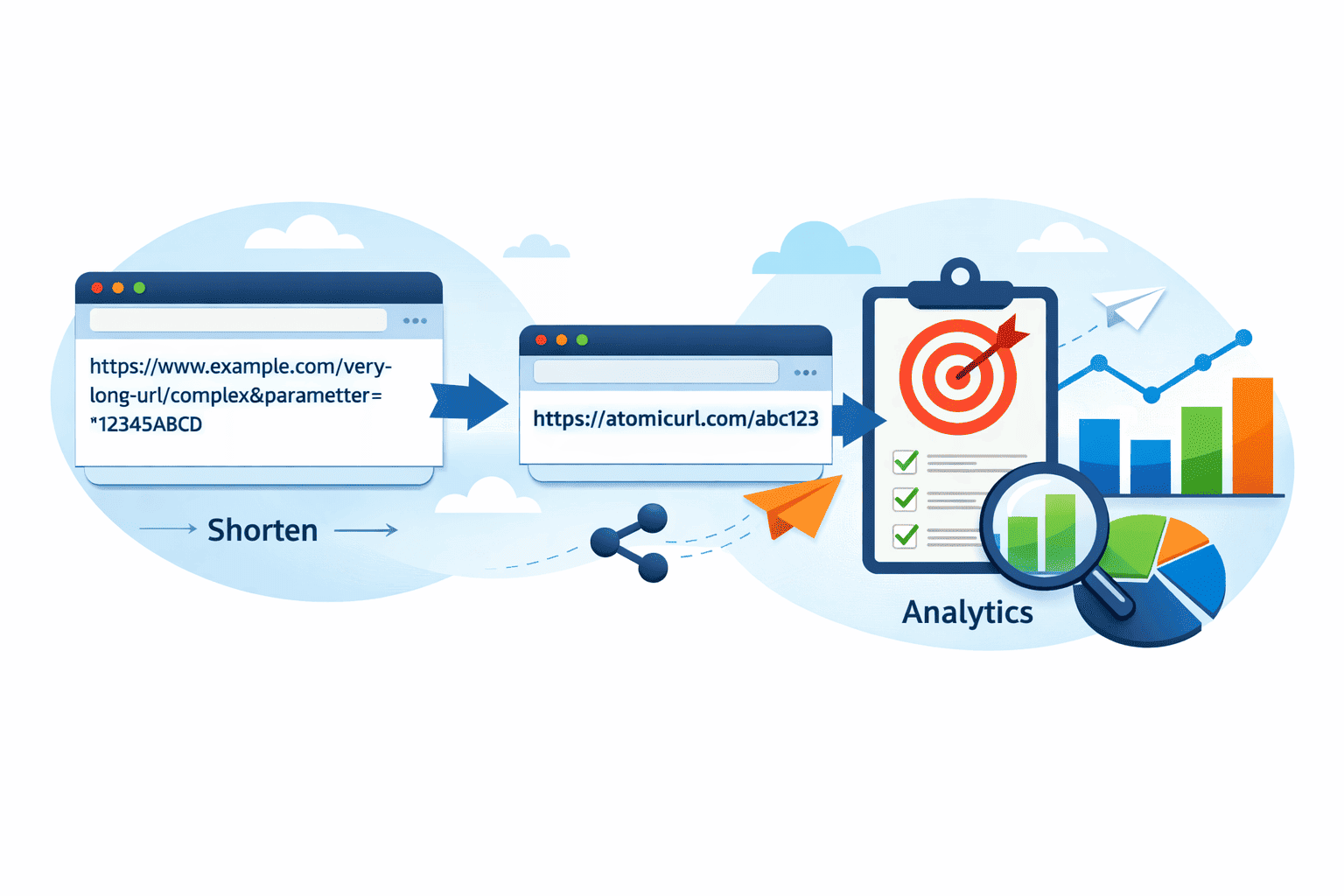
The workflow is simpler than most people assume. You're not replacing HubSpot's tracking—you're adding a layer that controls what the recipient sees while still allowing you to understand what happens after the click.
Here's how it works. Before building your email in HubSpot, you create the short links you'll need for that campaign. Go to AtomicURL, paste your destination URL, assign a custom slug that matches the email's offer or content, copy the short link. Do this for every unique CTA in the email—because each CTA should have a distinct slug so you can track which one is driving clicks independently.
Then in HubSpot, you use the short link as the URL for your button or hyperlinked text. HubSpot still wraps it in its tracking redirect—which is fine, that's how your HubSpot click data populates—but the short link is what displays visibly, and it's what the recipient sees in the plain-text version, in the forwarded version, in their preview pane.
No sign-up required to create these links. No account to maintain. Instant link shortening means this adds maybe three minutes to your email build time, not thirty.
Why Distinct Short Links Per Email Matter More Than You Think
Let's be honest about how most marketers use short links in email: they create one link and use it everywhere. Same link in the email header CTA, the body paragraph link, the footer button, the PS line. And then they look at HubSpot's click data and see total clicks on the email but can't tell which element drove the engagement.
Creating distinct short link slugs for each CTA position—/guide-headercta, /guide-bodycta, /guide-footercta—gives you granular visibility that HubSpot's default tracking doesn't provide without extra configuration. You see which placement is driving clicks, which message framing converts better when it's closest to a specific CTA, which email sections people actually read to the end.
This is the kind of data that improves the second email in a sequence, the third A/B test, the next campaign. It compounds. And the only cost is thirty extra seconds per email to create three slugs instead of one.
Managing Email Campaign Links at Scale
If you're running complex HubSpot sequences—nurture tracks, onboarding flows, re-engagement campaigns, multi-touch ABM sequences—the number of links involved grows fast. A five-email nurture sequence with three CTAs each is already fifteen links. A campaign running across segments, with variations, could easily reach fifty or more.
The bulk URL shortener at AtomicURL processes up to 50 URLs at once. If you're setting up a major campaign and have a list of destination URLs ready, you batch them, set the slugs, export the CSV, and have a clean link inventory before you've written a single email in HubSpot. That CSV becomes the reference document for the campaign—shareable with your team, importable into your project management setup, useful for post-campaign audits.
The CSV export is genuinely practical for email marketing operations. When something breaks—wrong link in email four, CTA pointing to the wrong landing page—having a documented link inventory means you can identify and fix the issue in minutes rather than hunting through HubSpot's link settings trying to remember what you used where.
Destination Changes Mid-Sequence: The Problem Most Don't Anticipate
Here's something that happens regularly in HubSpot shops with active nurture sequences: a landing page gets updated, or moved, or replaced mid-campaign. The email sequence is live. Contacts are already in various stages of it. Some have received email one but not email two. Some have clicked already.
If you're using raw destination URLs in your HubSpot emails, you have a problem. Those URLs are baked into the emails. Contacts who receive email two tomorrow will click a URL that points to a page that no longer exists, or that redirects to a generic page that has nothing to do with why they clicked.
If you're using managed short links, you update the destination in the URL manager and every email in the sequence—sent or yet-to-be-sent—now resolves correctly. The short link is the stable address. The destination is the variable you control.
This is the feature that email marketers who've been burned by mid-campaign destination changes talk about the most. It's not glamorous. It's operational resilience, and it's worth building into your standard HubSpot workflow before you need it.
Time-Sensitive Campaigns and Link Lifecycle
HubSpot is frequently used for launch campaigns, limited offers, event promotions, and other time-bounded communications where the link should stop working when the offer ends. Normally, managing this means either going into HubSpot to update or disable the link after the campaign closes—or just leaving it, accepting that late clickers land somewhere inappropriate.
Custom link expiry automates this. When you create your campaign short link, set the expiry date to match when the offer ends. The link deactivates automatically. Late clickers—people who received email three on day eight of a seven-day offer—see a clear expired message rather than landing on a confusing page.
Click-based expiry works alongside this for quantity-limited offers running through HubSpot. Running a campaign for a beta program with 100 spots? The link closes after 100 clicks, regardless of when that happens. Your HubSpot sequence can keep sending—it's set up to run—but the link itself controls capacity automatically.
Both approaches mean you can set up time-sensitive or capacity-limited HubSpot campaigns and trust that the link will handle its own lifecycle without requiring manual intervention at the exact moment you're usually managing other post-campaign logistics.
The Plain-Text Version Problem
Something most email marketers don't spend enough time on: the plain-text version of their emails. Every HubSpot email should have a plain-text version—it improves deliverability, it serves recipients whose email clients don't render HTML, and it's often what ends up in forwarded or printed versions of your emails.
In plain-text versions, links can't be hyperlinked. They appear as raw URLs. If your CTA is a long destination URL wrapped in HubSpot's tracking redirect, that's what shows in plain-text. An entire line of characters that looks more like code than content.
A short branded link in plain-text is clean. It reads like a real recommendation rather than a system output. /startfreetrial or /downloadreport or /bookyourspot in a plain-text email reads like something a person put there intentionally. It's one of those small details that contributes to emails feeling human rather than automated—particularly important in sequences that are supposed to feel personal.
Cross-Channel Consistency From a Single Link
HubSpot campaigns rarely live in email alone. They're usually supported by social posts, paid ads, direct outreach through Sales Hub, and sometimes landing pages or print materials. The same offer, the same destination, distributed through multiple channels.
Using consistent short link slugs across all of those channels—with channel-specific variants where attribution matters—creates a coherent link experience. When your sales rep follows up an email with a LinkedIn message that contains the same clean short link, or when someone sees your ad after opening your email and both contain the same branded URL, the consistency signals organization. It looks like a coordinated campaign rather than a collection of loosely related tactics.
Quick-share buttons for various social platforms at AtomicURL make it easy to distribute the same short link to your supporting social content without manually reformatting for each platform. The link was already created for the email. One more click sends it to LinkedIn, Twitter, Facebook, or wherever your supporting distribution lives.
If a link arrives through an external partnership—a co-marketing campaign, a joint webinar promotion, a vendor referral—and you're including it in your HubSpot emails, run it through the URL expander first to verify the destination. Sending a third-party short link to your HubSpot list without knowing where it leads is a trust risk you can easily avoid.
The Compounding Effect of Better Email Links
None of this is revolutionary in isolation. One cleaner link in one email makes a small difference. The reason to build these practices into your HubSpot workflow is that they compound across every campaign, every sequence, every send.
Recipients in your database develop ambient trust from consistently seeing clean, branded links rather than tracking redirect walls. Your team spends less time scrambling when destinations change or campaigns need to extend past their planned window. Your campaign documentation is cleaner and more useful. Your post-campaign analysis has richer link-level data.
AtomicURL makes this the low-friction version of better link practice—no account overhead, instant creation, one-click copy, unlimited links, and all the management features you need when campaigns get complex. Drop it into your pre-send checklist alongside your HubSpot preview and you'll start seeing the benefits without adding meaningful time to your workflow.
Better emails start long before the subject line.
Tags
#HubSpotMarketing #EmailMarketing #ShortLinks #URLShortener #AtomicURL #HubSpot #MarketingAutomation #EmailCampaigns #DigitalMarketing #LinkManagement #ContentMarketing #B2BMarketing #MarketingTools #EmailStrategy #CampaignOptimization
_Image_1.png)
_Image_1.png)
_Image_1.jpg)



_Image_1.jpg)

.jpg)

.jpg)


.jpg)